An AI agent updating your WordPress site is genuinely useful — but it should never see your real password. The fix is a small feature WordPress has shipped since 2020 that almost nobody uses. Here's what an Application Password is, what an agent can and can't do with one, and how to pull the plug in two clicks.
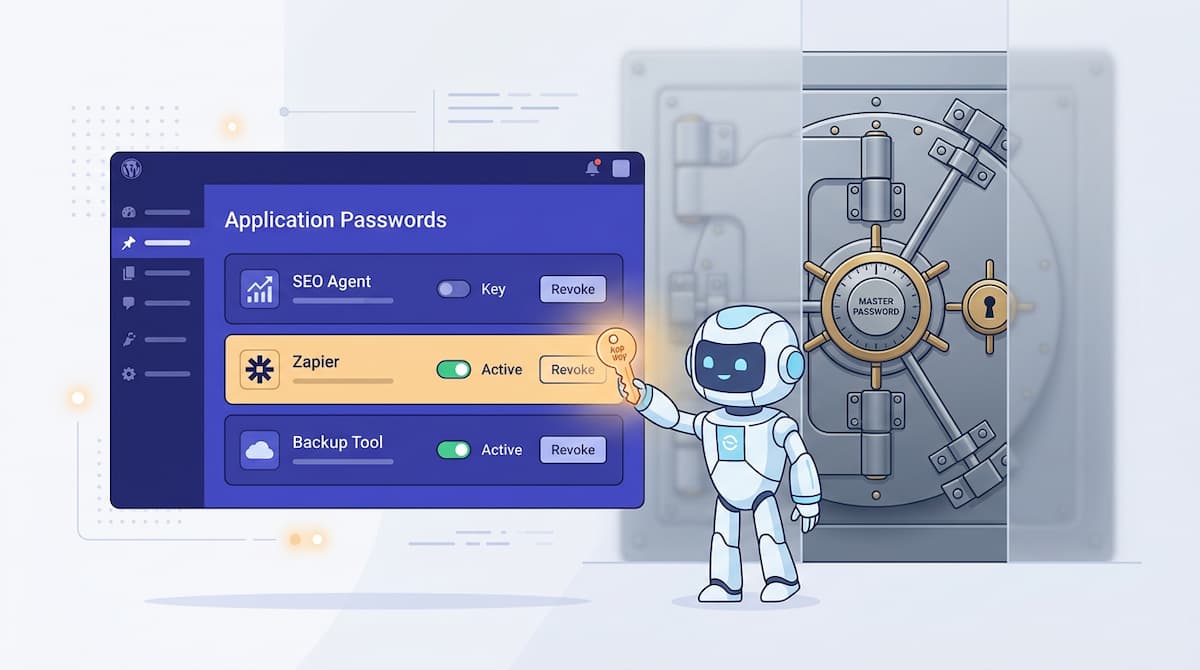
Most small business owners I talk to are excited about AI agents updating their website. Then they read the setup instructions: "Paste your WordPress login here." And they close the tab.
That instinct is correct. Giving an AI tool — or any third party — your actual WordPress password is the digital equivalent of handing over the keys to your house, your car, and your safety deposit box, then asking them to please only feed the cat. There is no way to limit what they can do. There is no way to revoke access without changing your password everywhere.
The good news: WordPress fixed this in version 5.6, released December 2020. It's called an Application Password, and it's the only safe way to let any external tool — AI or otherwise — touch your site. Almost nobody uses it. Here's why that should change, and exactly what one does.
What is a WordPress Application Password?
An Application Password is a separate, randomly-generated password that you create inside your WordPress dashboard for one specific tool. It exists alongside your real login, not in place of it. Three things make it different from your normal password:
- It only works with the WordPress REST API. An Application Password cannot log in to your dashboard, change your theme, install plugins as an admin, or read your private messages. It can only call programmable endpoints — the ones your site already exposes at
/wp-json/. - It has a name attached. When you create one, you label it ("ChatGPT", "SEO Agent", "Zapier") so you can see at a glance which tool is using which key.
- It's revocable in two clicks. No password reset. No "what was I logged in to with this?" panic. Just click Revoke next to the named entry and that tool is locked out instantly, without affecting anything else.
You can have as many Application Passwords as you have tools. Each one is independent. If one tool gets compromised, the others keep working.
Why AI agents need one (and why your real password is a terrible alternative)
An AI agent that genuinely helps your SEO — drafting better page titles, adding missing schema markup, fixing meta descriptions — has to write changes to your site. There's no way around that. The only real choice is how it gets that write access.
Your real password is a bad option for four reasons:
- It opens every door at once. An agent that has your password can do anything you can — including things you'd never let it do, like deleting all your posts or adding a new admin user.
- You can't see what it used. WordPress doesn't audit-log dashboard logins. If something goes wrong, you can't tell whether the agent did it or someone else who had your password.
- Revoking it breaks everything. The only way to lock the agent out is to change your password — which logs you out of every device, every browser, and every other tool that knew it.
- It probably violates your hosting terms. Most managed WordPress hosts (Kinsta, WP Engine, SiteGround) explicitly prohibit sharing admin credentials with third parties. Application Passwords are the supported alternative.
An Application Password fixes all four. It's scoped to the REST API, it's per-tool, it's instantly revocable, and it's the path your host wants you to use.
How to create an Application Password in under 60 seconds
The setting lives somewhere most people never look. Here's the path:
- Log in to your WordPress dashboard as an administrator.
- Go to Users → Profile (or Users → Your Profile on some versions).
- Scroll to the bottom. You're looking for a section titled Application Passwords. If you don't see it, you're either on WordPress older than 5.6 (update it), on a site where your host has disabled the feature (contact them), or you're not an administrator (you need to be).
- Type a name for the tool that will use this password — e.g.
SEO Agent. The name is just a label so you can identify it later. - Click Add New Application Password. WordPress generates a 24-character password and shows it to you once. Copy it immediately and paste it into the tool that asked for it.
- Confirm the page now shows that named entry in the list, with a Revoke button next to it. You're done.
That password — combined with your username — is what the agent uses to authenticate every REST API call. WordPress treats it like a normal admin's credentials for the scope of the API, but anything outside the API (logging into wp-admin, viewing your dashboard) is blocked.
Why WordPress says Application Passwords require HTTPS (and how to fix it)
You might see a message like "requires HTTPS to use WordPress Application Passwords" from a plugin or AI tool, or find the Application Passwords section simply isn't on your profile page. There are two different causes, and it's worth knowing which one you've got before you change anything.
Cause 1: the site really isn't on HTTPS
WordPress only switches Application Passwords on for sites that use SSL (HTTPS), or for local development sites. That's stated in WordPress's own developer reference. The reason is simple: the password travels with every request a tool makes, and over plain HTTP anyone on the network path could read it.
If your address bar shows http:// with no padlock, fix it in this order:
- Turn on an SSL certificate. Most hosts include a free Let's Encrypt certificate in the control panel.
- Change both addresses in WordPress. Under Settings → General, switch WordPress Address (URL) and Site Address (URL) from
http://tohttps://, then save. You may need to log in again. - Check every page loads on HTTPS. If some still open on
http://, ask your host to redirect them. - Go back to Users → Profile. The Application Passwords section should now be there.
Cause 2: the site is on HTTPS, but something has switched the feature off
This one catches people out. WordPress lets plugins turn Application Passwords off through a filter called wp_is_application_passwords_available, and some security plugins do exactly that as a hardening option. When that happens, a tool can show the HTTPS message even though your site already has a padlock. Site owners have reported this on the WordPress.org support forums.
If your site is already on HTTPS:
- Look through your security plugin's settings for an option that disables Application Passwords or the REST API, and switch it back on only if you're happy for that tool to connect.
- Update the plugin that showed the message. A misleading check is sometimes fixed in a later version.
- If you can't find the setting, deactivate plugins one at a time on a staging copy until the Application Passwords section comes back.
One more edge case: if your site sits behind a proxy or CDN that handles HTTPS for it, WordPress can think visitors are arriving over plain HTTP. Your host can confirm whether that's happening.
What a safe AI agent does with that password
If you've handed over a properly-scoped Application Password, here's what a well-built agent should be doing in return:
- Encrypt the password at rest. Stored in the agent's database using something like Fernet symmetric encryption. The decryption key never leaves the agent's server.
- Show you what it changed. Every API call to your site should generate a record you can read: which post, what changed, when. No black-box updates.
- Let you approve before writing. The agent should draft a change, show it to you, and only push to your site after you click Approve. "Auto-apply" should be opt-in, not the default.
- Fall back to manual. When the API call doesn't work — wrong scope, plugin conflict, server returns a 500 — the agent should email you the change as a snippet to paste, not silently fail.
This is roughly the model the Pivot Bureau workshop uses: encrypt the key, propose every change, push only after approval, and email the snippet if WordPress rejects the request. The Application Password sits inside the workshop until you click Revoke on your end — at which point our tool stops working and your site keeps running normally.
Four red flags that mean the agent is unsafe
Not every AI tool that asks for a WordPress credential is built well. If you're evaluating one, walk away if you see any of these:
- It asks for your real password. No legitimate modern WordPress tool needs this. Application Passwords have been the standard for five years. If they don't know that, they're not paying attention.
- It can't tell you what it changed. If there's no log, there's no accountability. You should be able to see every edit, on every page, with timestamps.
- "Auto-apply" is the only option. If you can't review changes before they go live, the agent isn't a tool — it's a gamble.
- It stores credentials unencrypted. Ask. If they can't answer, or the answer is "we use HTTPS" (that's encryption in transit, not at rest), keep walking.
Revoking access when you're done
When the engagement ends — or any time you change your mind — go back to Users → Profile → Application Passwords, find the named entry, and click Revoke. That credential is dead. The agent can no longer write to your site. Your real password is untouched. Nothing else breaks.
That's the whole point: scoped access you can revoke without consequences. If an AI agent makes you choose between giving up your real password and not using AI at all, that's a problem with the agent, not with WordPress.
FAQ
Does an Application Password give an AI agent full admin access?
Only within the REST API. It cannot log in to your WordPress dashboard, install or delete plugins, change your theme, or read your private settings. It can only call the programmable endpoints — which are the same ones any custom mobile app or integration uses.
Can I limit an Application Password to specific actions, like "edit posts only"?
Not directly — WordPress core grants the same REST scope as the user's role. The practical workaround is to create a dedicated WordPress user with the Editor role (rather than Administrator) and generate the Application Password under that account. Editors can update posts and meta but cannot change site-wide settings, install plugins, or manage users.
What happens if I lose the Application Password I generated?
WordPress only shows it once. If you didn't save it, revoke that entry, generate a new one, and paste the new one into the tool. Nothing is lost — it's just a name-and-key combo, not a recovery seed.
Do hosted WordPress.com sites support Application Passwords?
Self-hosted WordPress (wordpress.org) supports them natively from version 5.6 onward. WordPress.com Business and Commerce plans support them too. Free and Personal plans on WordPress.com don't expose the REST API in the same way, so most AI tools won't work there regardless of the credential type.
If an Application Password leaks, can it be used to access my real login?
No. The two are completely independent. A leaked Application Password gives the attacker REST API access scoped to the role of the user it was generated under — they cannot use it to derive your real password or log in to wp-admin. Revoking the leaked entry locks them out immediately without forcing you to change anything else.
Why does a plugin say it requires HTTPS to use WordPress Application Passwords?
Usually because WordPress only enables Application Passwords on sites served over HTTPS, or on local development sites. If your site already has HTTPS, a security plugin may have switched the feature off through the wp_is_application_passwords_available filter, which makes some tools show the same HTTPS message. Check your security plugin's settings and update the plugin that showed the warning.
Want us to do this on your site?
Pivot Bureau's free AI SEO audit tool ends with a workshop where every recommended fix is drafted by AI, reviewed by you, and pushed to your WordPress site through a single scoped Application Password that you generate. You revoke it the moment we're done. Nothing else changes hands. Book a call if you want to see the workshop in action before you sign up.